Extending an existing MultiNode network
Extend an existing MultiNode network by adding one or more new devices. Factory-default devices can join the network through the setup wizard or automatic detection.
Adding one or few devices
Use the setup wizard to add one or a few devices to an existing MultiNode network.
-
Prepare a factory-default MultiNode LAN 4TE device for the existing network. Mount the device at its final location or position it temporarily for configuration.
-
Connect an Ethernet cable from the device's LAN port to your laptop.
-
Open a web browser and navigate to
devolo-xxxxx.local(wherexxxxxrefers to the last five digits of the device's serial number). -
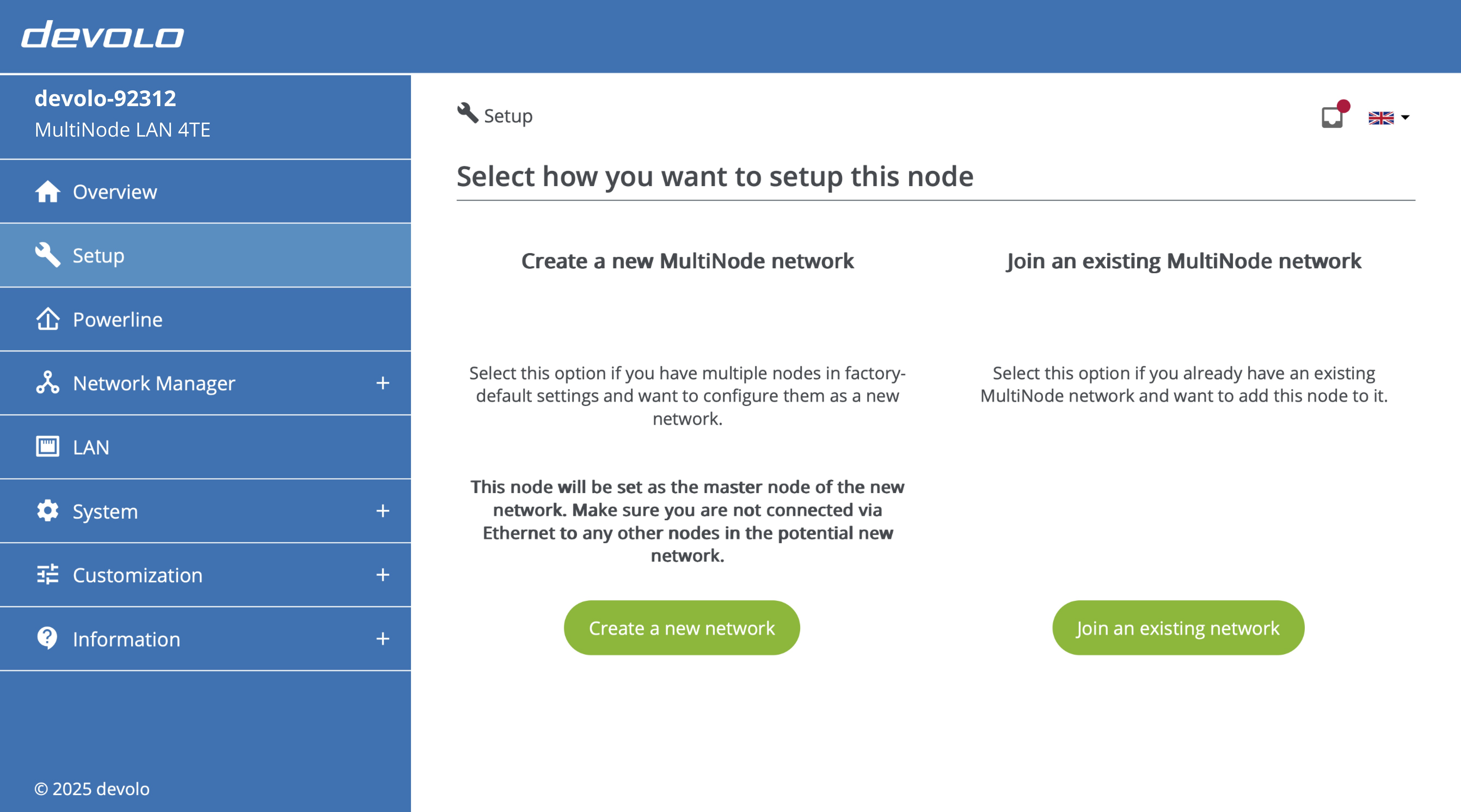
The setup wizard starts automatically when accessing a factory-default device.
-
Click 'Join an existing network' button.
-
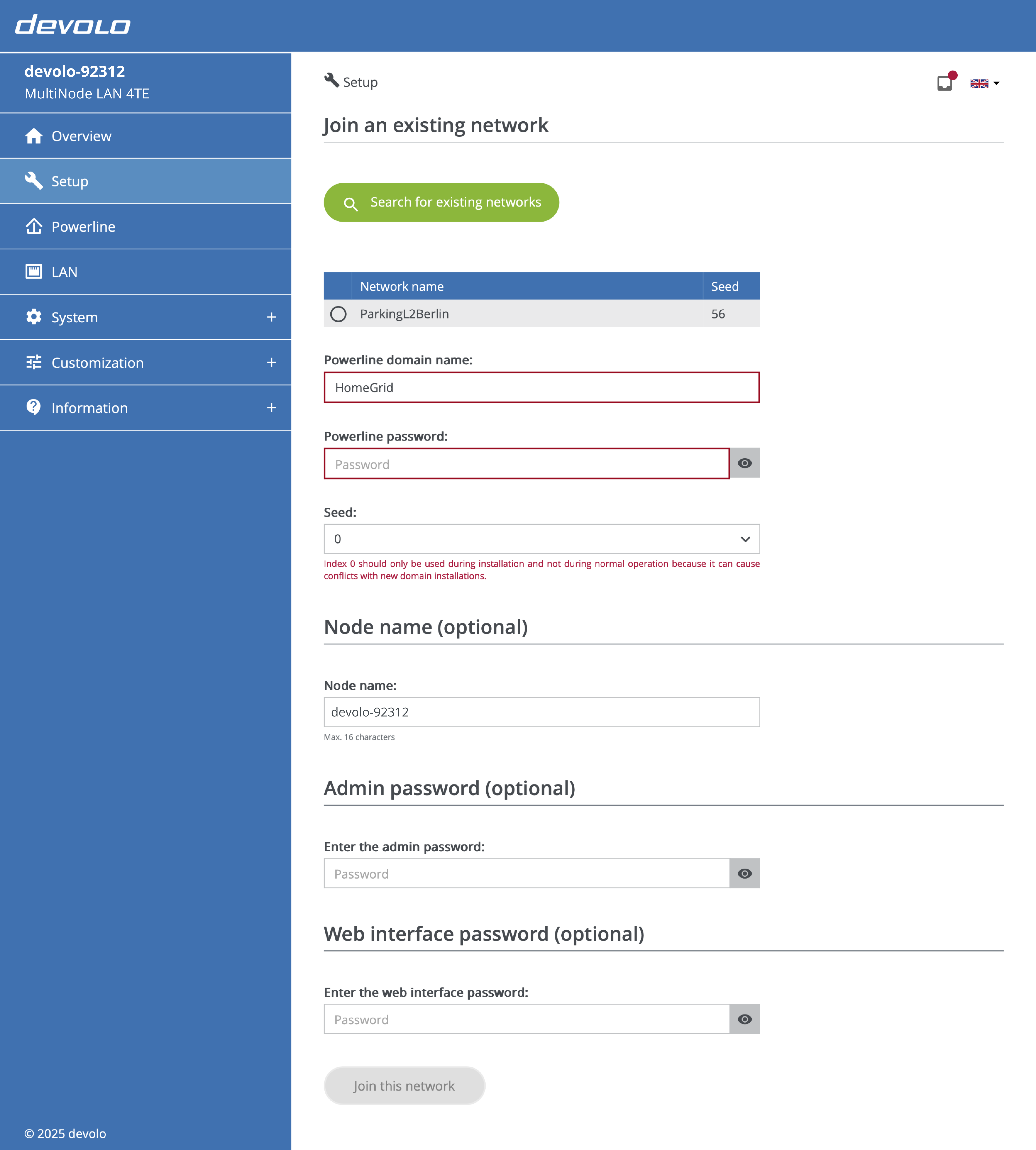
The device scans for available networks and displays them on the next screen.
-
Select the network you want to join and enter the required credentials. The powerline domain name and seed are set automatically.
- Powerline password: Required for joining the network
- Admin password: Optional, depending on auto-approval settings
- Web interface password: Optional, for accessing the device's web interface
Auto approval
If auto approval is enabled on the master node's web interface, the admin password is not required. If auto approval is disabled, you can open the master node's web interface and manually approve the new node instead of entering the admin password.
-
Click 'Join this network' to complete the process. The device connects to the selected network as a regular node.
Network discovery
The device automatically scans for available MultiNode networks on the same electrical circuit. Ensure the new device is connected to the same power grid as the existing network.
Adding several devices
Use the extension wizard in the master node's web interface to add multiple devices at once to an existing MultiNode network.
Downtime
Network extension temporarily resets the existing MultiNode network's powerline settings to factory defaults. This causes downtime for application devices connected to MultiNode devices.
-
Mount and connect all new devices to the same electrical circuit as the existing network.
-
Power on all new devices without connecting via Ethernet.
-
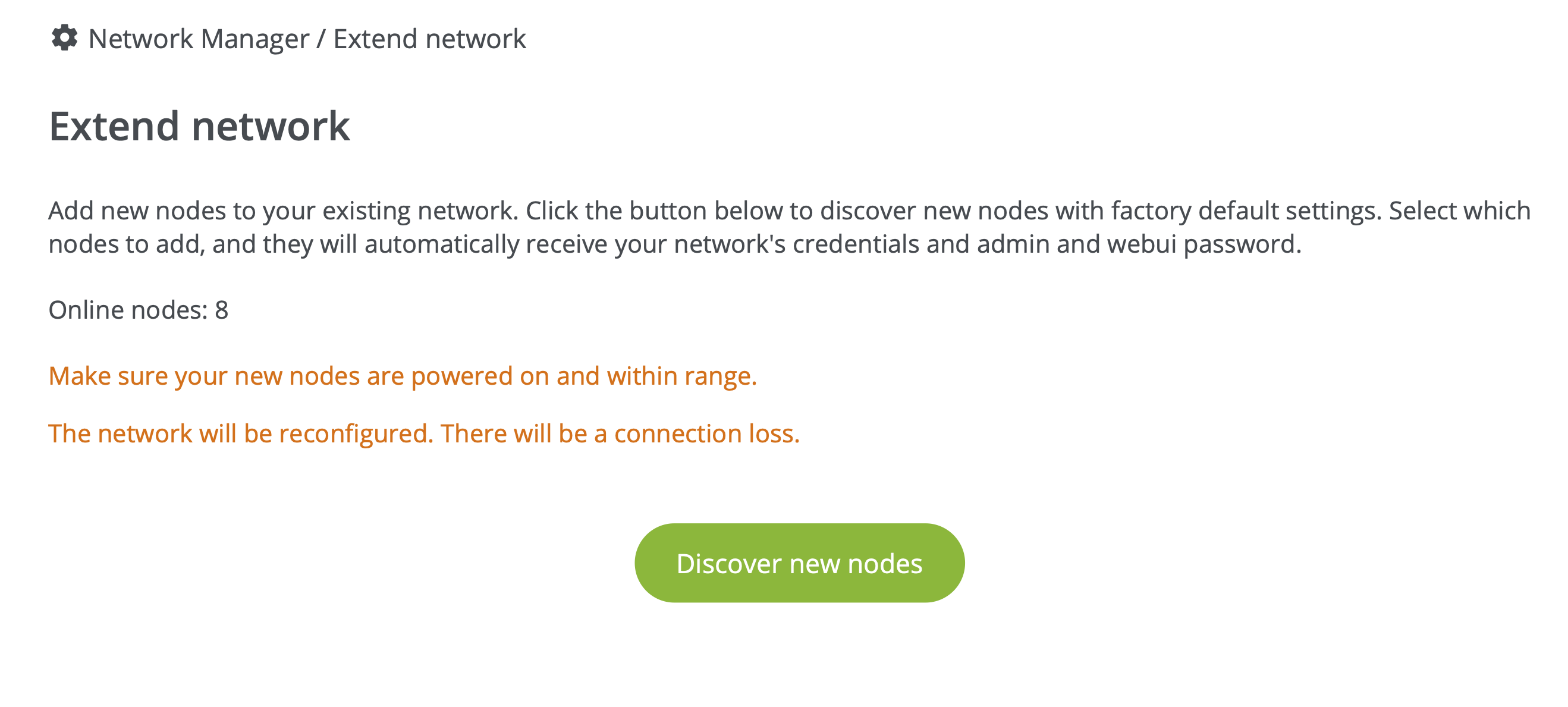
Open the master node's web interface and navigate to Network Manager > Extend network. Click 'Discover new nodes' to temporarily place the current network in factory-default state, allowing new nodes to connect and form a larger network.
-
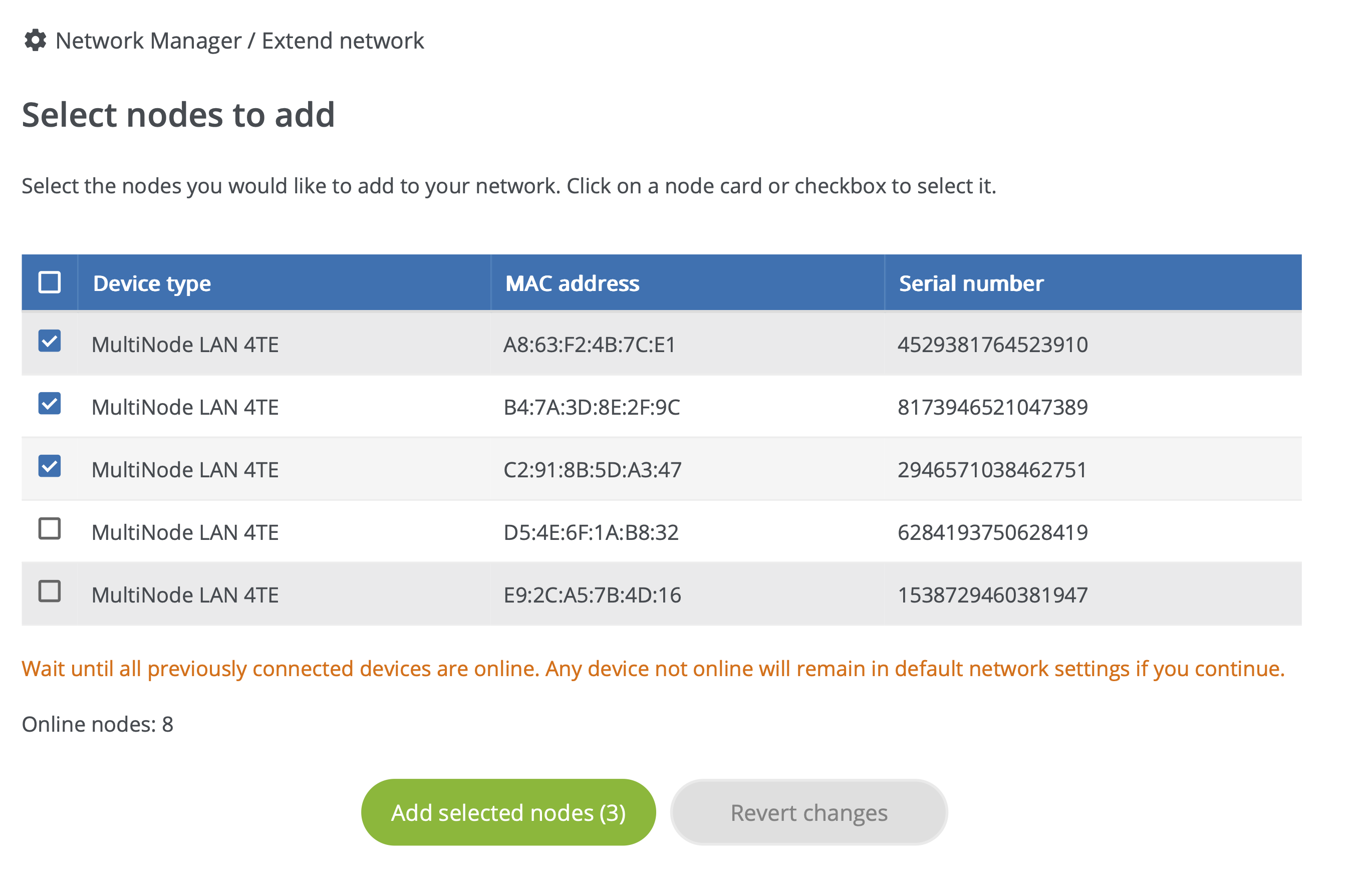
Select the nodes to join the existing network and click 'Add selected nodes'. The new devices receive the network credentials, admin password, and web interface password from the master node.
Electrical circuit
All extension devices must be connected to the same mains circuit as the existing network for automatic discovery.
Verification
After adding new devices:
- Open the master node's web interface and navigate to the Overview page to confirm all new devices are listed
- Verify each device shows an active connection status
- Optionally, rename the new devices for easier identification in the network overview