Network Manager
The Network Manager is available only on the master node’s web interface. Use it to configure network-wide settings and updates for every node in the MultiNode network. The page is organised into three subpages: Security, Synchronisation, and Firmware.
Network Manager → Settings
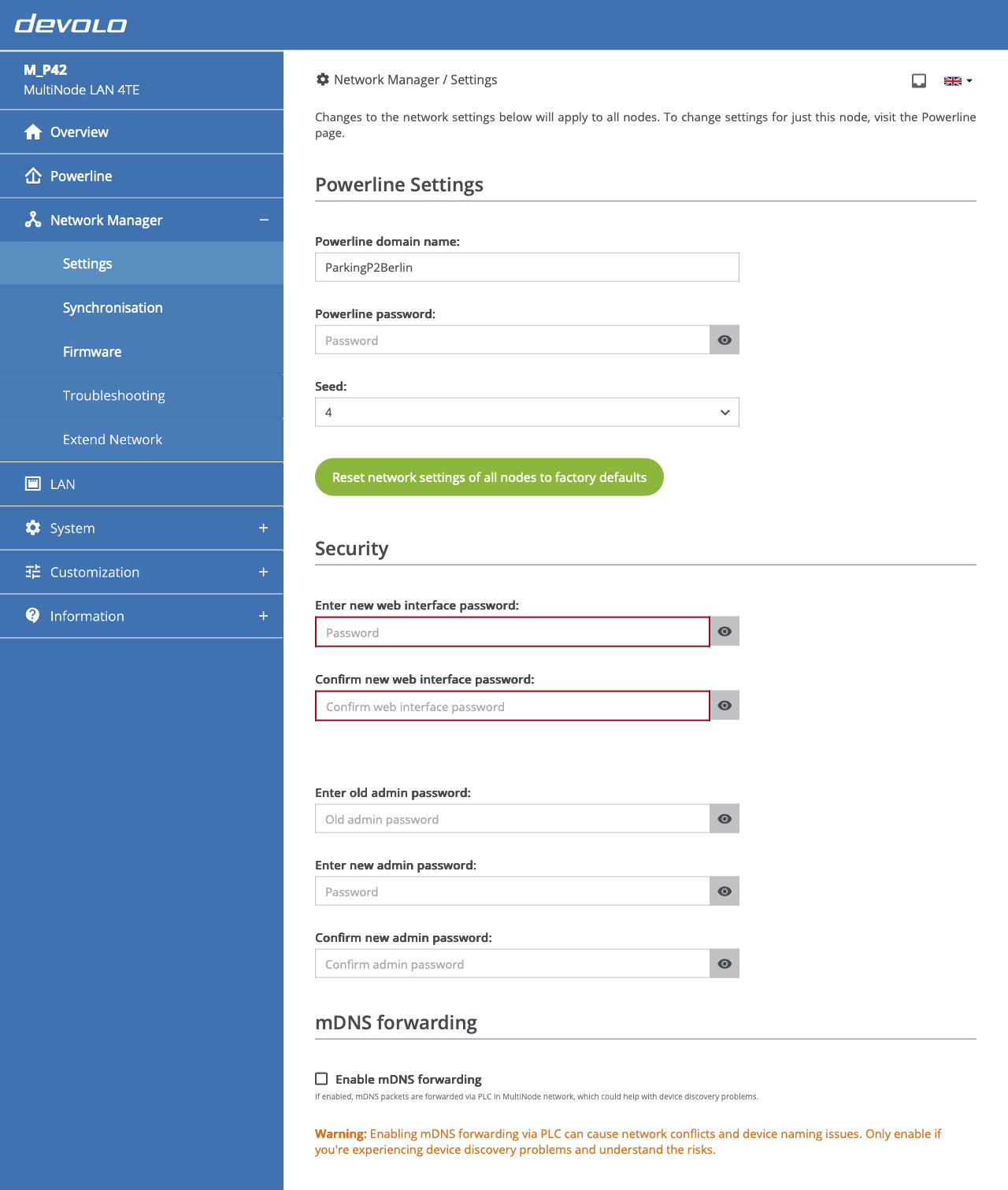
Use the Settings subpage to view and manage network-wide settings. You can configure:
- mDNS forwarding: Enabling mDNS forwarding could help with device discovery issues in certain networks. As this can cause device naming issues, it is recommended to enable mDNS forwarding only if you are experiencing device discovery problems.
Save your changes to apply them across the network immediately.
Network Manager → Synchronisation
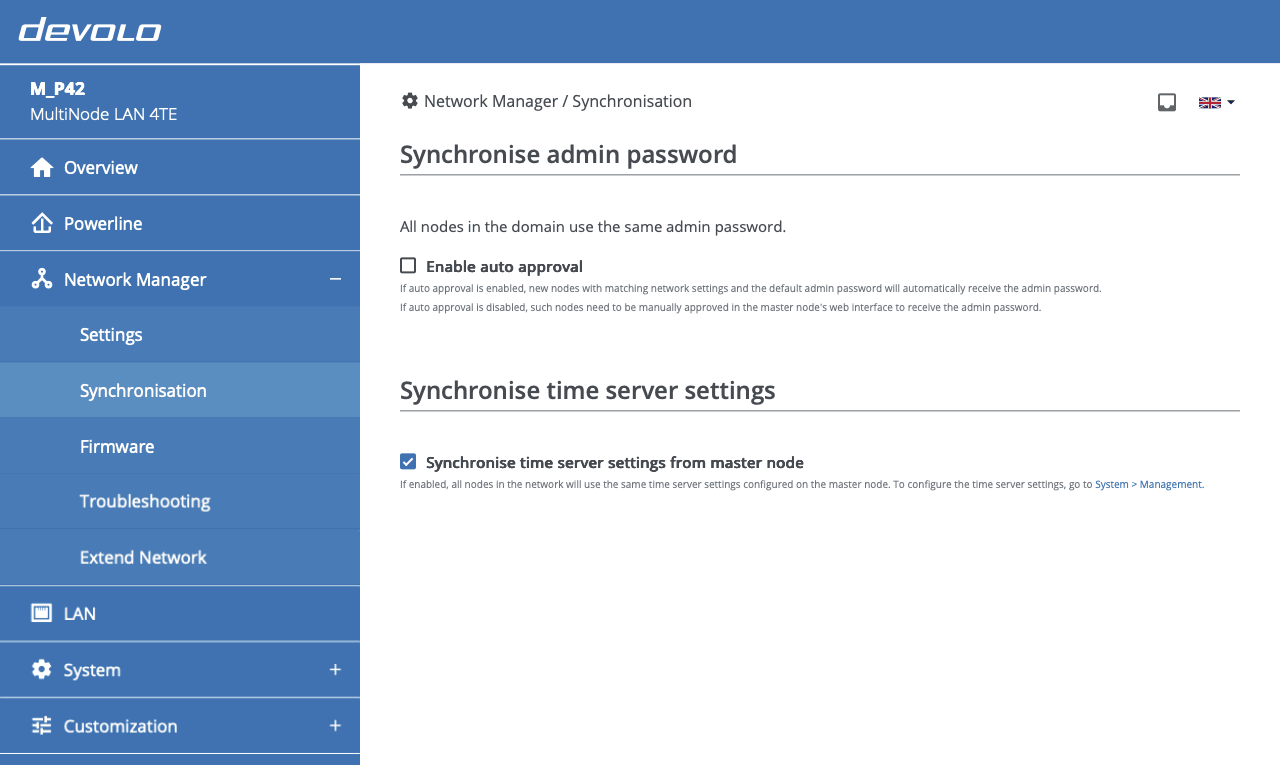
Synchronise admin password
When you introduce a new node to an existing MultiNode network, it needs the correct powerline settings and the current admin password. Configure Auto approval to let the master node provide the admin password to any node that joins with matching powerline settings.
Auto approval
Auto approval works only when the new node still uses the default admin password. If you have already changed the password on that node, the admin credentials will not sync from the master node.
Synchronise time server settings
When synchronisation is enabled, the time server settings from the master node are applied to all nodes in the network. Keeping this enabled is recommended.
Network Manager → Firmware
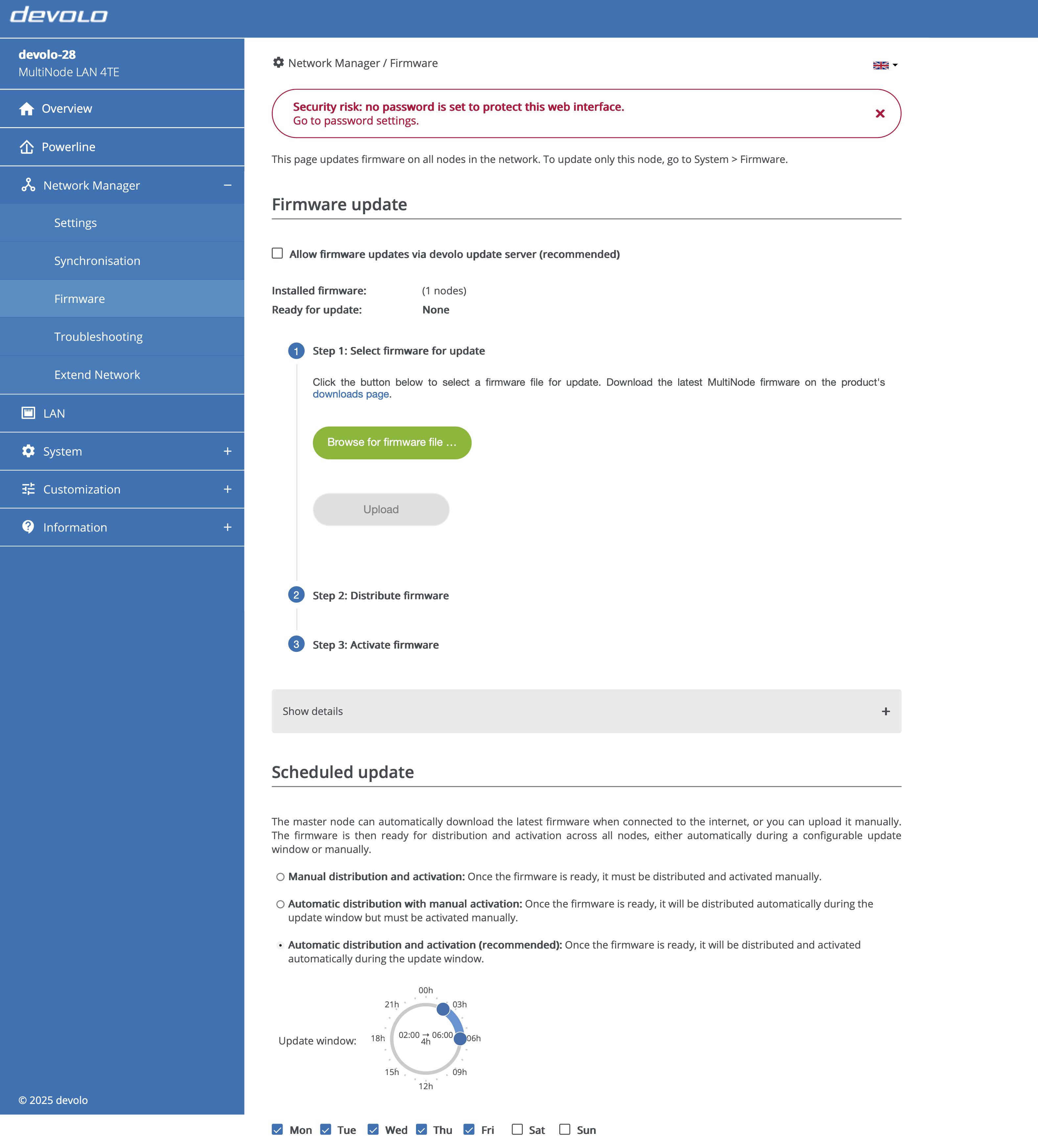
Use the Firmware subpage to distribute and activate firmware across the network. The update workflow consists of three steps:
- Select firmware: Upload a file from your computer or let MultiNode LAN 4TE download the latest version from the devolo update server. This step stores the firmware on the master node without changing the running version.
- Distribute: Copy the firmware from the master node to every regular node. Distribution does not trigger a reboot.
- Activate: Reboot all nodes to activate the new firmware.
You can also automate firmware management. MultiNode LAN 4TE can automatic download updates from the devolo update server and, together with a defined update window, run distribution and activation without manual intervention.
Firmware update duration
Large networks with more than 50 nodes can take over one hour to update.