Troubleshooting
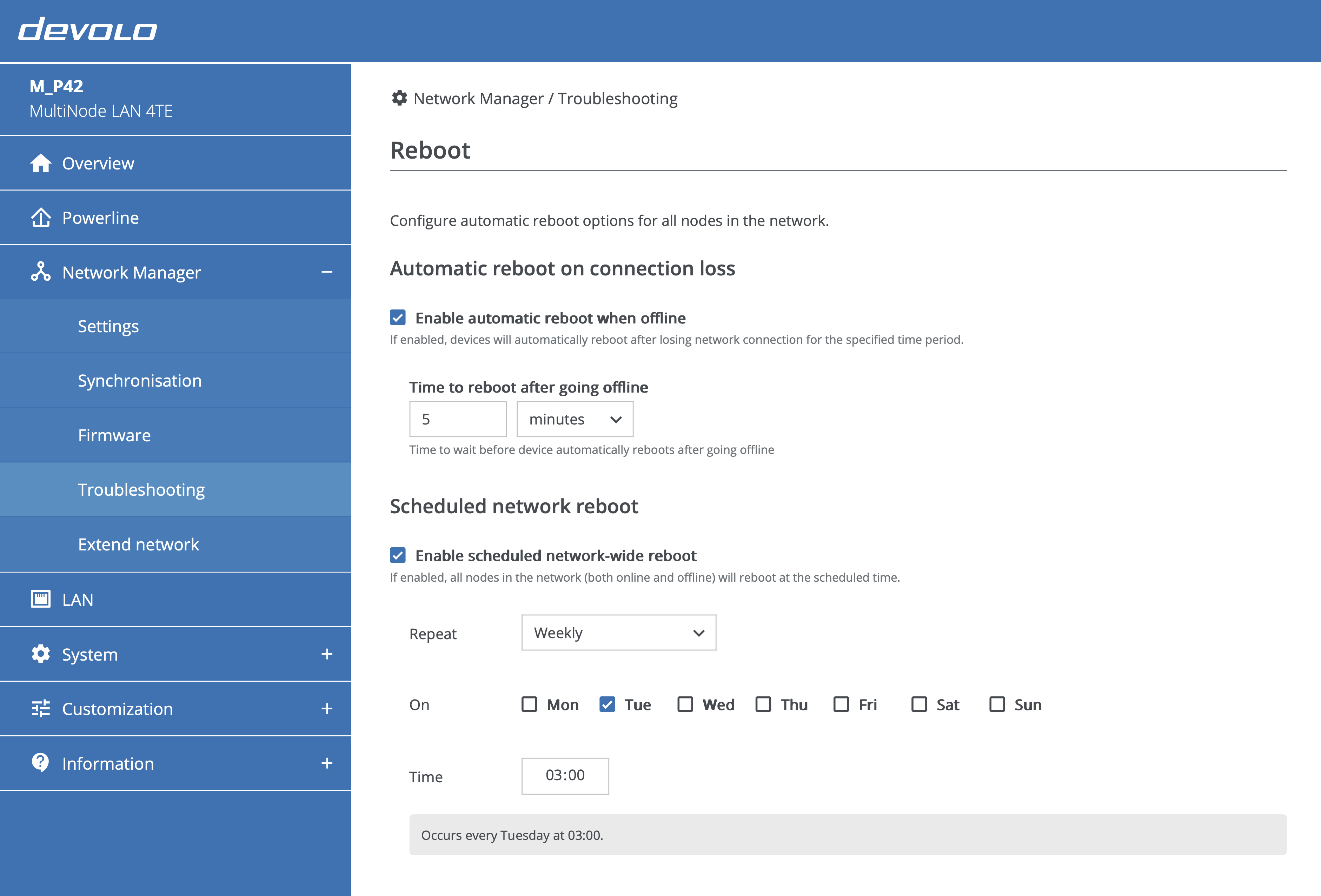
The Troubleshooting page provides automatic reboot configuration options for all nodes in the network. Use this page to configure devices to recover automatically from network issues or to maintain network stability through scheduled reboots.
Master node only
The Troubleshooting page is available only on the master node's web interface. Regular nodes display a message explaining that Network Manager is not available, with a button to navigate to the domain master's web interface.
Automatic reboot on connection loss
Configure devices to automatically reboot after losing network connectivity. This feature helps recover from network issues that may require a device restart.
Enable automatic reboot when offline
Toggle this setting to enable or disable automatic reboots when a device loses network connectivity.
Delay configuration
Set the time to wait before the device reboots after going offline:
- Configurable range: 5 minutes to 999 hours
- Default behavior: The device waits for the specified duration after being disconnected from the master node before automatically rebooting
Connection loss detection
The timer starts when a device detects it has lost network connectivity. If the device reconnects before the timer expires, the automatic reboot is cancelled.
Scheduled network reboot
Schedule automatic reboots for all nodes in the network. This feature applies to both online and offline nodes, helping maintain network stability through periodic restarts.
Enable scheduled network-wide reboot
Toggle this setting to enable or disable scheduled network-wide reboots. When enabled, all nodes in the network will reboot at the scheduled time.
Frequency options
Choose how often the scheduled reboot occurs:
Daily
Reboots occur every day at the specified time.
Weekly
Select specific days of the week when reboots should occur. You can select multiple days for weekly reboots.
Monthly
Choose between two scheduling methods:
- By date: Select a specific day of the month (1-31)
- Example: "Day 15 of every month"
- By ordinal: Select an ordinal position and day
- Ordinal options: First, Second, Third, Fourth, Last
- Day options: Day, Monday, Tuesday, Wednesday, Thursday, Friday, Saturday, Sunday
- Example: "First Monday of every month" or "Last day of every month"
Monthly schedule on invalid dates
If you schedule a reboot for a day that does not exist in a given month (e.g., day 31 in February), the reboot will be skipped for that month.
Time selection
Specify the exact time for the scheduled reboot using 24-hour format (HH:MM). The default time is 02:00.
Schedule summary
A dynamic summary displays the configured schedule based on your selections:
- Daily example: "Occurs every day at 02:00"
- Weekly example: "Occurs every Friday at 02:00"
- Monthly (by date) example: "Occurs day 15 of every month at 03:00"
- Monthly (by ordinal) example: "Occurs first Monday of every month at 02:00"
Applying changes
After configuring the troubleshooting settings, click the Save icon button to save and apply settings network-wide The status display shows Network Manager sync status and progress during configuration distribution. An Abort button appears during the operation, allowing you to cancel if needed.
Network-wide application
Reboot configuration is applied to every node in the network. The master node distributes the configuration to all regular nodes automatically.