System
Use the System page to manage settings that apply to the local MultiNode LAN 4TE.
System → Status
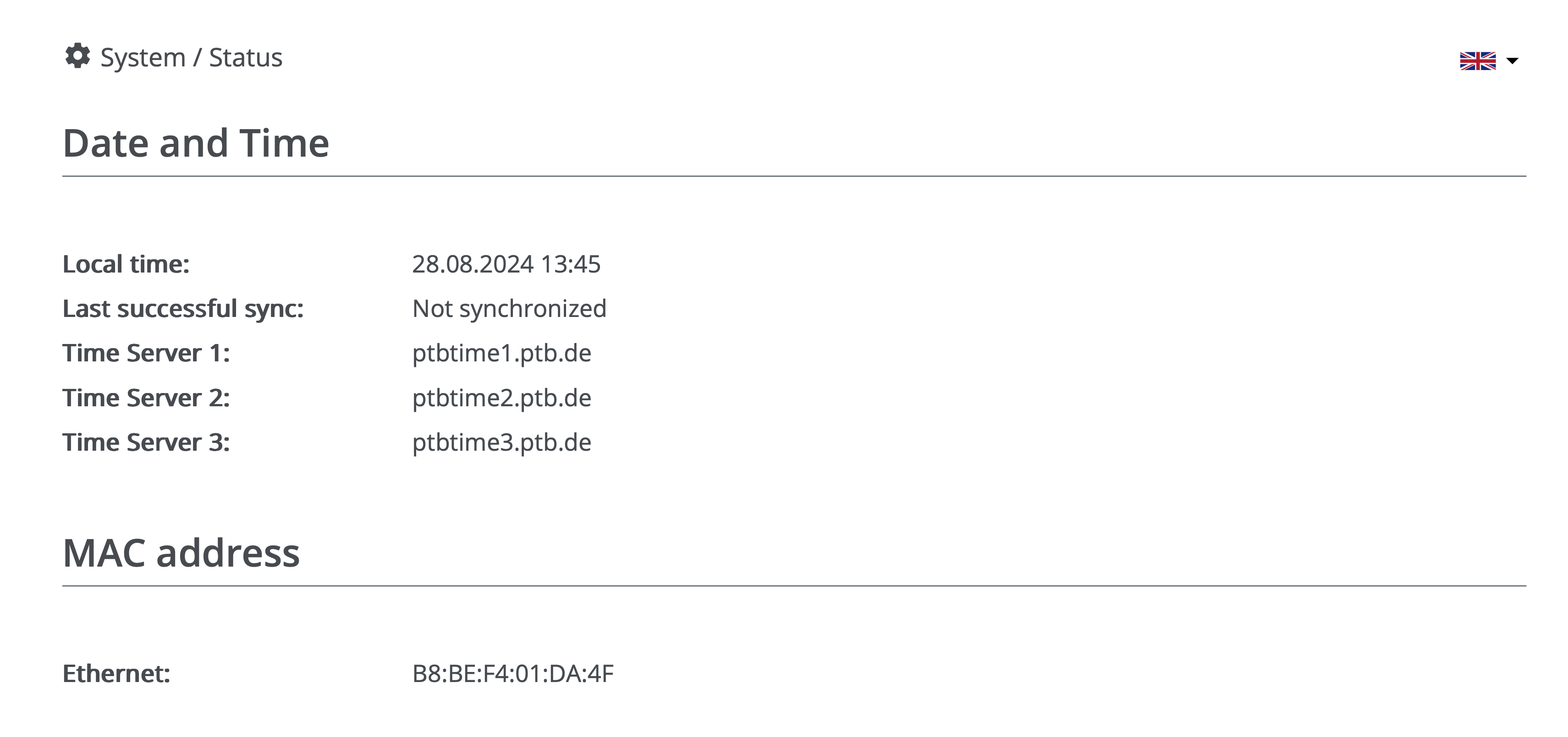
The Status subpage shows the current date and time, the configured NTP servers, and the device MAC address.
System → Management
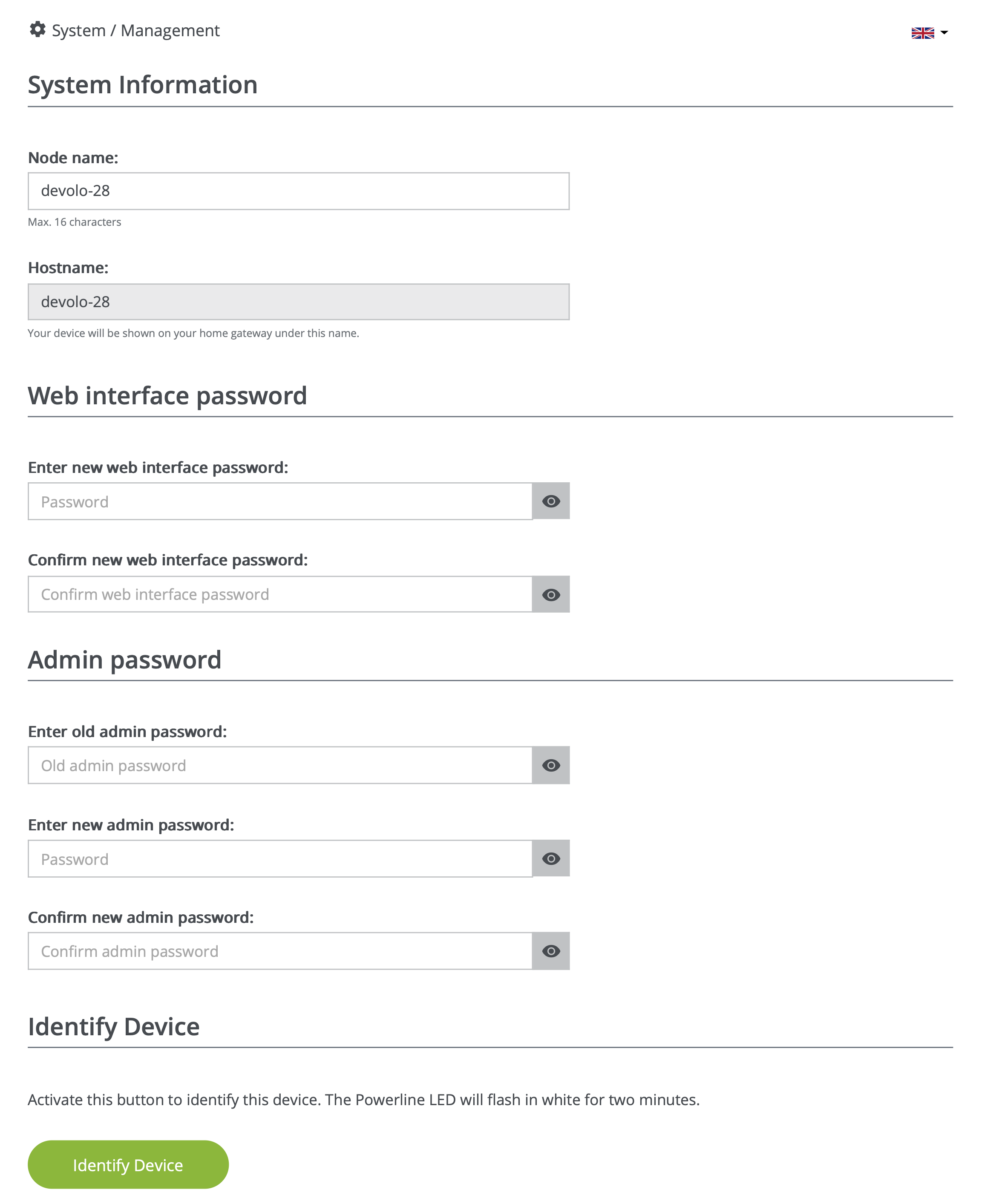
Node name
Rename the device to make it easier to identify. Use a descriptive name that reflects the installation location, such as "P42".
Web interface and admin passwords
Set the local web interface and admin passwords for this device.
Network-wide passwords
To use the same credentials across the network, update them from Network Manager → Security on the master node.
Identify device
Click Identify to flash the white PLC LED for two minutes. This can help locate the device in the field.
LED
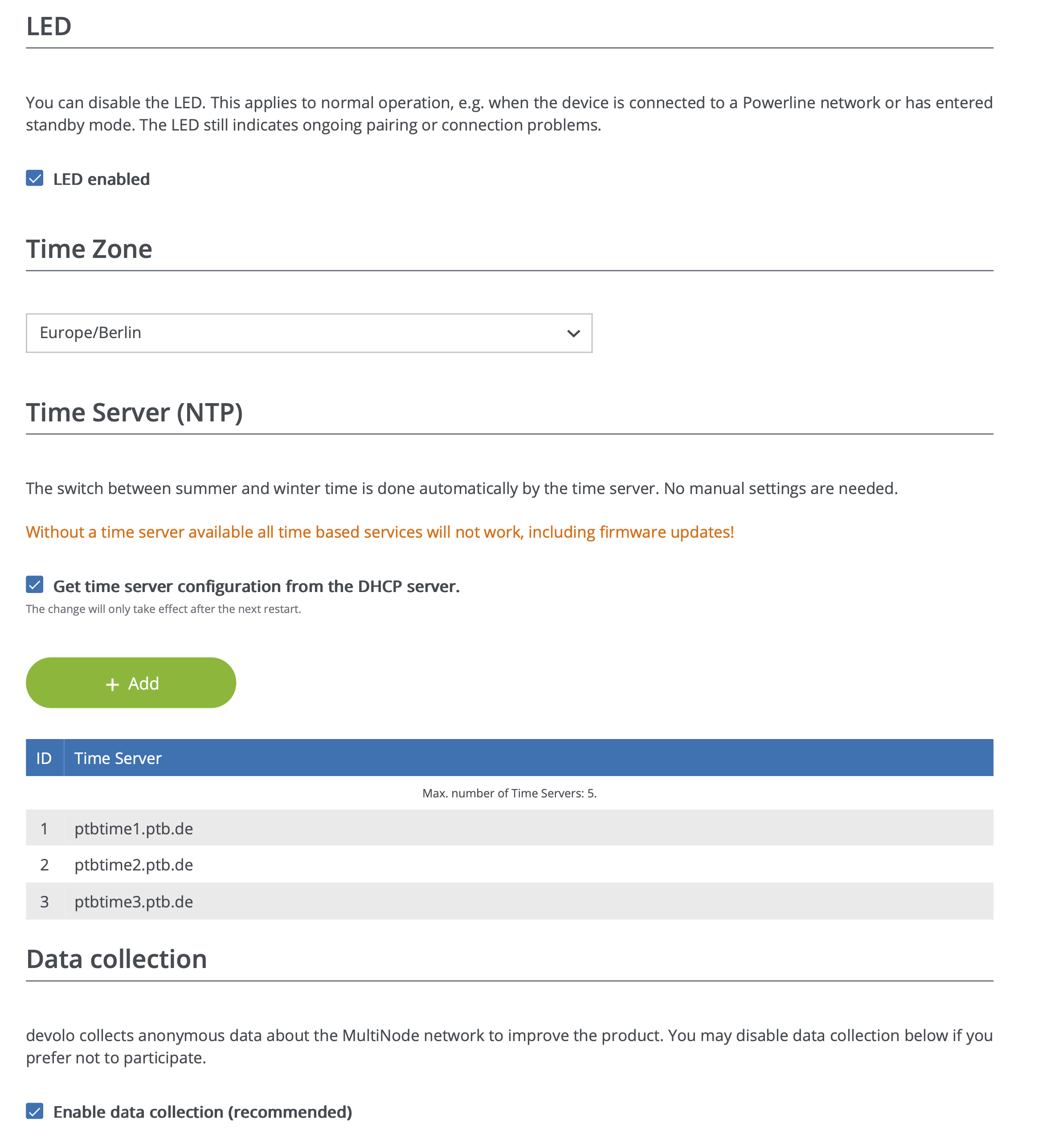
Disable the LEDs during normal operation if needed. Error conditions still trigger flashing LEDs, even when the LED enabled option is off.
Time zone
Select the appropriate time zone (for example, Europe/Berlin).
Time server (NTP)
Review or edit the list of NTP servers used to synchronise the clock. Without a valid time set, scheduled tasks such as firmware updates may fail.
System → Certificate
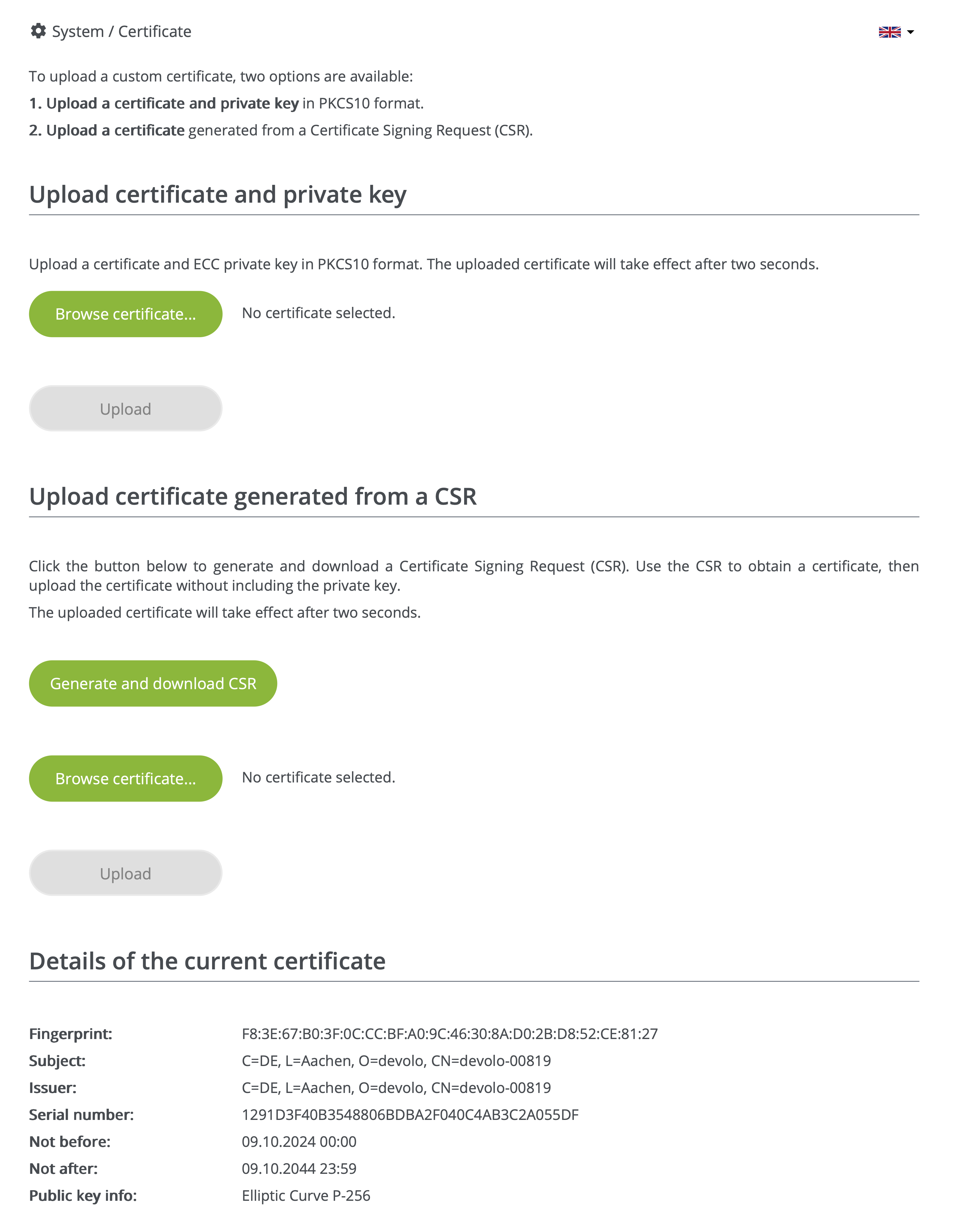
Upload a custom certificate bundle in PEM format containing both the private key (RSA or ECC) and certificate. The change takes effect within a few seconds.
System → Configuration
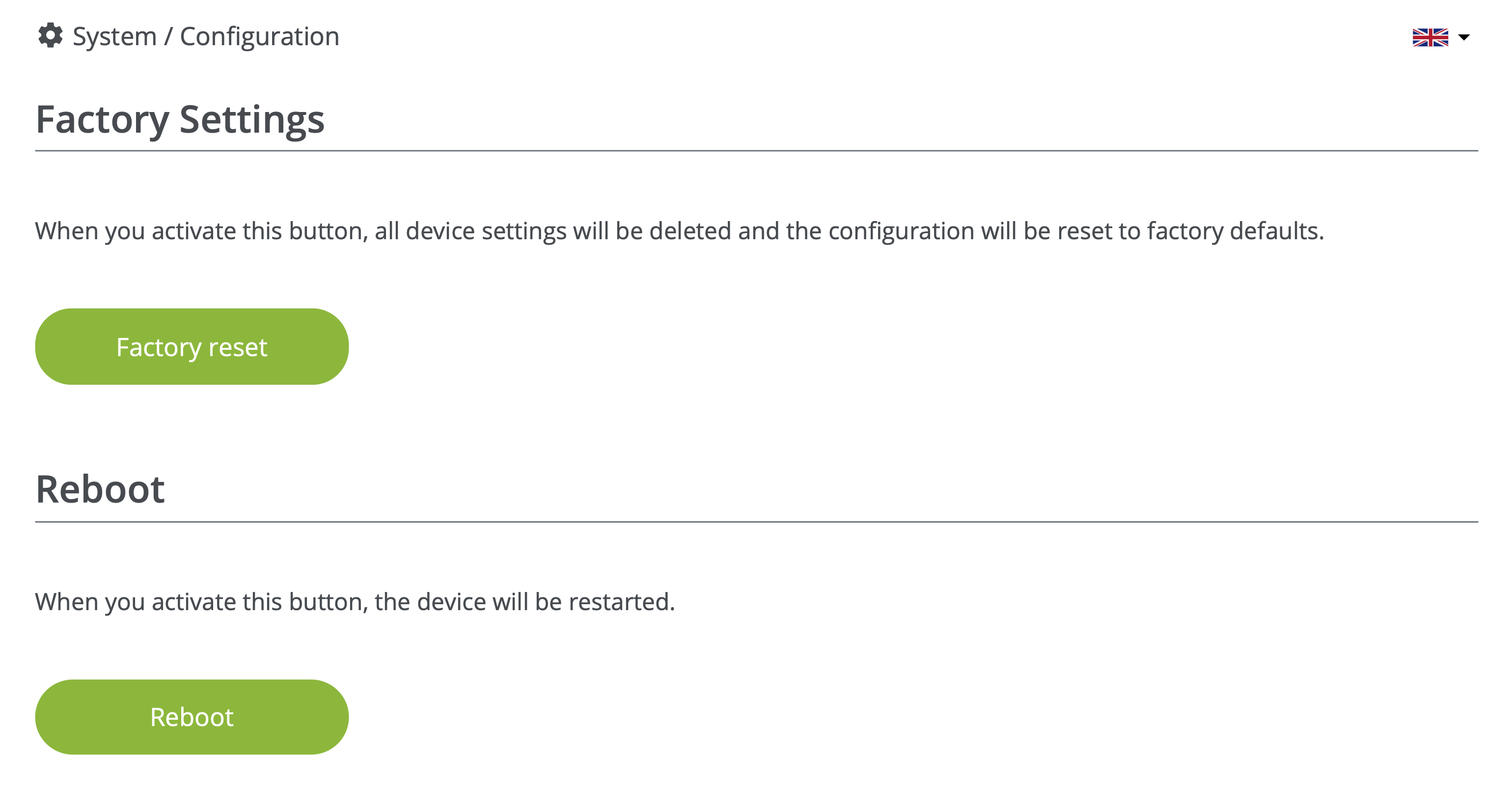
Factory settings
Click Factory reset to restore default settings. The device leaves the existing network; if it is the master node, the network dissolves.
Reboot
Click Reboot to restart the device without changing the configuration. After the reboot, the browser redirects to the Overview page.
System → Firmware
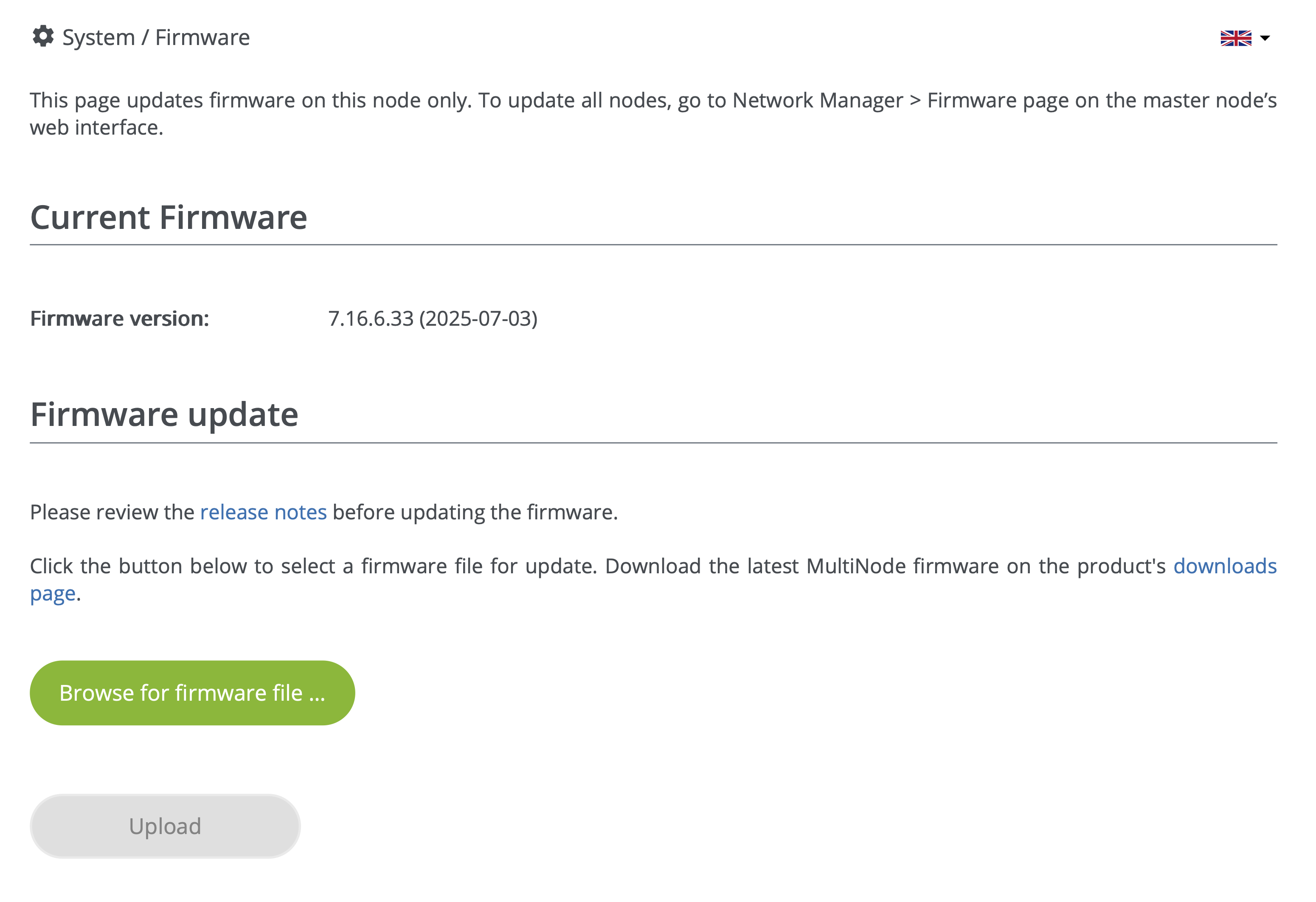
Use this subpage to update the firmware on the current device. Automatic downloads are not available here, so download the newest firmware from the product downloads page before starting.
To update the firmware:
- Download the latest firmware file from the product downloads page.
- Click Browse for firmware file... and select the file.
- Click Upload to install it. The device restarts automatically and returns to the Overview page.
Avoid interrupting the update. A progress bar shows the status.